I finally did it. I replaced my WordPress website with a static HTML website. This blog post explains why I decided to leave WordPress behind, describes how I did it, and identifies the pros and cons of my solution.
Let’s begin.
Disclaimer:
I don’t care whether you use WordPress or not. It has some valid use cases and if you are happy with it, you should continue using it. The goal of this blog post is to encourage people who are looking for other options. It’s definitely possible to get rid of WordPress even if you have a lot of existing pages and posts (I started my blog in 2010).
Why I Decided That It’s Time to Leave WordPress Behind
As I have grown older, I have realized that time is my most valuable resource because I cannot get back lost time. Also, this means that if I want to have more time, I have to prioritize and focus on things that matter.
In other words, I decided to stop using WordPress because:
1. I don’t want to spend any time taking backups of my WordPress website and its database. Even though my hosting service takes regular backups, I don’t want to rely on their ability to restore them. That’s why I had to take my own backups.
2. I don’t want to “constantly” test that my website is working as expected after a plugin or WordPress update. This takes a lot of time because if you want to do this right, you have to:
- Take a backup of the production site and database.
- Apply the update on the development environment and test that the website is working as expected.
- Apply the update on the production environment and test that the website is working as expected.
Of course, quite often I skipped the first and second steps, and decided to test on production. And yes, sometimes I got bitten because I made a bad call, and I had to figure out how to fix the problem.
I don’t want to do this anymore.
3. I don’t want to tweak the performance of my WordPress website or figure out how to write my own plugins because the existing plugins are too slow. I don’t want to waste time on this, but more importantly, because I don’t know anything about WordPress or PHP, I would write inferior code that could create more problems than it solves.
4. I don’t want to worry about the security of my WordPress website just because I cannot test and update it immediately when an update is released. I don’t want to be on my computer 24/7/365 or worry that some script kiddie has exploited a vulnerability with an AI-generated script.
5. I don’t want to pay for premium WordPress plugins just to make the website work the way I want.
It’s easy to rant about WordPress, but I admit that I was able to replace it only because my requirements were so simple. Next, I will list them.
What Requirements Did I Have?
I didn’t need a complex CMS or an e-commerce platform. I just needed a place to share my tutorials. Here is what I wanted:
- Maximum speed. The website must load as fast as humanly possible.
- No dynamic content. I have no need for comments, custom forms, or a member area.
- No server-side code. I want to minimize attack surface and maximize security.
- No analytics. I have no need for invasive analytics.
- Drip integration. I use Drip and my website must display opt-in forms which allow people to subscribe to my email newsletter.
- Syntax highlighting for code. Because I write technical content that has code listings, the website must support readable code blocks with syntax highlighting.
- Offline writing. I want to write drafts and edit posts locally on my computer without an active internet connection.
- Accessibility support. The markup must include at least basic accessibility support such as semantic HTML, proper contrast, and keyboard navigation.
- Preserve existing URLs. The new site must use the same URL structure as my old WordPress site so it wouldn’t break inbound links, bookmarks, or search engine rankings.
- Preserve existing content. The solution must have a migration mechanism that migrates categories, pages, posts, and tags from WordPress without losing text formatting, code snippets, or images.
- RSS and sitemap. The solution must update the RSS feed and sitemap when I release a new page or post.
Let’s find out how I fulfilled these requirements.
How I Replaced WordPress With a Static HTML Website
I did a little bit of research and came to the conclusion that I want to write pages and posts as Markdown documents and transform them into a static HTML website with Hugo. I paired with Claude Code and asked it to generate three scripts:
- A migration script that migrates categories, pages, posts, and tags from WordPress export XML files and transforms this information into a format that’s understood by Hugo.
- A script that generates an HTML website into a local directory that’s served by Apache web server.
- A script that generates the changed files to a deploy directory. When I want to publish the changes, I can simply upload these files to a remote server.
After I verified that these scripts work as expected, I asked Claude to:
- Clean up and import the CSS from the production website.
- Scan the generated website for SEO and accessibility issues and report the found issues to me. After I received the report, I asked Claude to fix the issues one issue at a time.
After everything was working as expected, I replaced the WordPress website with static HTML. At this point, everything was working, but I had to manage the website manually. For example, if I wanted to add a new post, I had to create a new Markdown file and edit it with Visual Studio Code.
Anyway, I was somewhat happy with the outcome and celebrated my achievement by writing a LinkedIn post. I got this comment:
So, you’ve essentially gone back to how websites were made in the nineties?
Although I disagree with the comment, it made me realize that managing everything manually is cumbersome. More importantly, my original goal was to have more time and my current solution left something to be desired. So, I opened Claude Code and started vibe coding a graphical user interface for managing my personal website.
To be more specific, I wanted to build a web application for managing Hugo’s content directory. This web application is run on my own laptop and it has no database. It reads information from the file system and writes information to it. This is still a work in progress, but now I can:
- Browse pages and posts. The web application has a browser that allows me to browse all pages and posts found in the content directory. I can also filter pages and posts by using a search term, type (page or post), and status (draft, published, scheduled). The page and post browser can be minimized when I don’t need it.
- Manage pages and posts. I can create new pages and posts, and edit the content of a page or a post by using a Markdown editor that has syntax highlighting and supports keyboard shortcuts for adding Markdown formatting. I can also see the metadata of a page or a post, and edit that metadata.
- See a preview next to the editor. Hugo renders the edited page or post by using the real layout and CSS of the website. The preview is updated when I save the page or post. I can also resize the preview view or hide it if I don’t need it.
- Schedule pages and posts. A page or a post isn’t published when it’s created. It starts its life as a draft and when I am happy with it, I can either publish it immediately or schedule it so that it’s published in the future.
- Generate the website. I can generate the full static HTML website to a local directory that’s served by Apache web server and generate the changed files to a deploy directory.
The current version looks as follows:
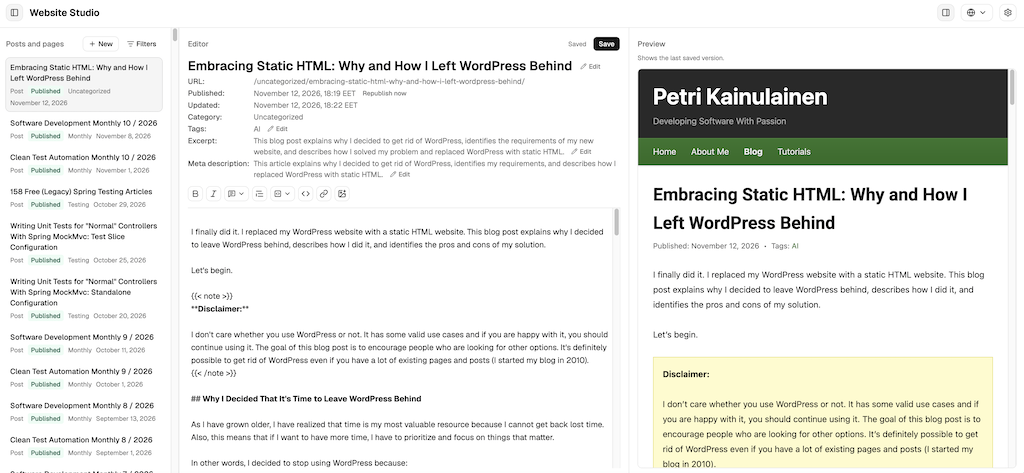
I will add new features when I need them, but the web application is usable in its current form and this blog post was written and published with it.
Next, I will go through the pros and cons of my solution.
Pros and Cons
When you analyze the pros and cons of a solution, you typically compare it against your requirements. This time, I’ll do something a bit different. I’ll explain why I like my solution (pros) and why it might not be a good fit for you (cons).
Why I like my solution:
- Minimized attack surface. My website is a bunch of HTML, CSS, JS, and image files that are served by Apache web server. It has no server-side code, database, or CMS that must be kept up to date. The web application that manages the website runs on my laptop and it isn’t accessible from the internet. In other words, there isn’t much that an attacker could exploit.
- Performance. Because every HTML page is generated before it’s uploaded to the server, the server has to only send static files to a browser. There are no database queries and every page loads fast without any tuning.
- Reduced costs. I don’t have to pay yearly license fees for premium WordPress plugins and I can get cheaper hosting because I don’t need a database or PHP support.
- Tailored for my workflow. The web application is a joy to use because it does exactly what I want, and nothing more. If I need a new feature, I will ask Claude to implement it or write it myself.
- Version control with Git. The pages, posts, templates, CSS, JS, and images are stored in a Git repository. I can take a look at every change, revert a bad change, and back up everything by simply pushing the repository to a remote server. I don’t have to back up my website and its database anymore.
- Doesn’t need an internet connection. I can write and review pages and posts, and generate the website without an active internet connection. I only need one when I upload the changes to the server. This means that I can work on a plane, in a cabin, or any other place where I cannot use the internet.
Why it might not be a good fit for you:
- Requires technical knowledge. If you don’t need the graphical user interface, you must be familiar with Markdown, Hugo, Git, and Apache web server. If you want the graphical user interface, you have to install some development tools and run the web application on your computer. Also, if something breaks, you are pretty much on your own.
- No support for dynamic content. A static website cannot have comments, custom forms, or a member area.
- No online support. The web application runs on your computer. You cannot write or fix a post from your phone or from another computer.
- Publishing the website requires manual work. Publishing the changes isn’t as simple as clicking the save button. You have to generate the changed files, upload them to the server, delete the files which were deleted from the website, and mark the changes as deployed.
So, should you replace WordPress with static HTML? Let’s find out.
Is Static HTML Right for You?
If you are considering your options, you should consider these things:
First, it’s possible to leave WordPress behind even if your website has a long history. I started my blog in 2010, and I was able to move all pages, posts, categories, and tags to a static HTML website without losing content or breaking existing URLs.
Second, static HTML isn’t free. You have to be comfortable with tools like Markdown, Hugo, Git, Apache web server, and the development tools which you use to build the graphical user interface (if you need one). Also, if something breaks, you have to fix it yourself. AI tools make this easier, but you still have to verify that their fix didn’t break anything.
Third, there is nothing wrong with using WordPress. If it’s the right tool for you, you should get a managed WordPress service that takes care of updates, backups, security, and performance. This way you can concentrate on your content and leave the time-consuming things to someone else.
